4 Best DVD Copy Drives for Backing Up Discs You Own in 2026
As an Amazon Associate, this website earns from qualifying purchases.
The short answer
For a DVD copy project, an external USB burner covers most collectors who back up discs occasionally, while a frequent archiver gets more value from an internal desktop drive. Check the law in your area before copying anything with copy protection.
A dvd copy project usually starts with one of two goals. One is backing up a home movie collection. The other is trying to save a disc that is showing early signs of damage.
#1. ASUS SDRW-08D2S-U Slim DVD Writer: best all-round slim DVD writer
Factors to consider when choosing a DVD copy drive
What a dvd copy project actually needs
Before you buy anything, split your goal into one of two paths. Path one is backing up home movies or other unprotected personal recordings. Almost any burner and free software handles that job well.
Path two is trying to preserve a commercial disc. Copy protection on many retail titles limits what a standard burner can do. This page does not cover ways around that protection.
Figure out which path fits your discs before you shop. It changes which hardware is even worth buying.
External burner versus internal burner
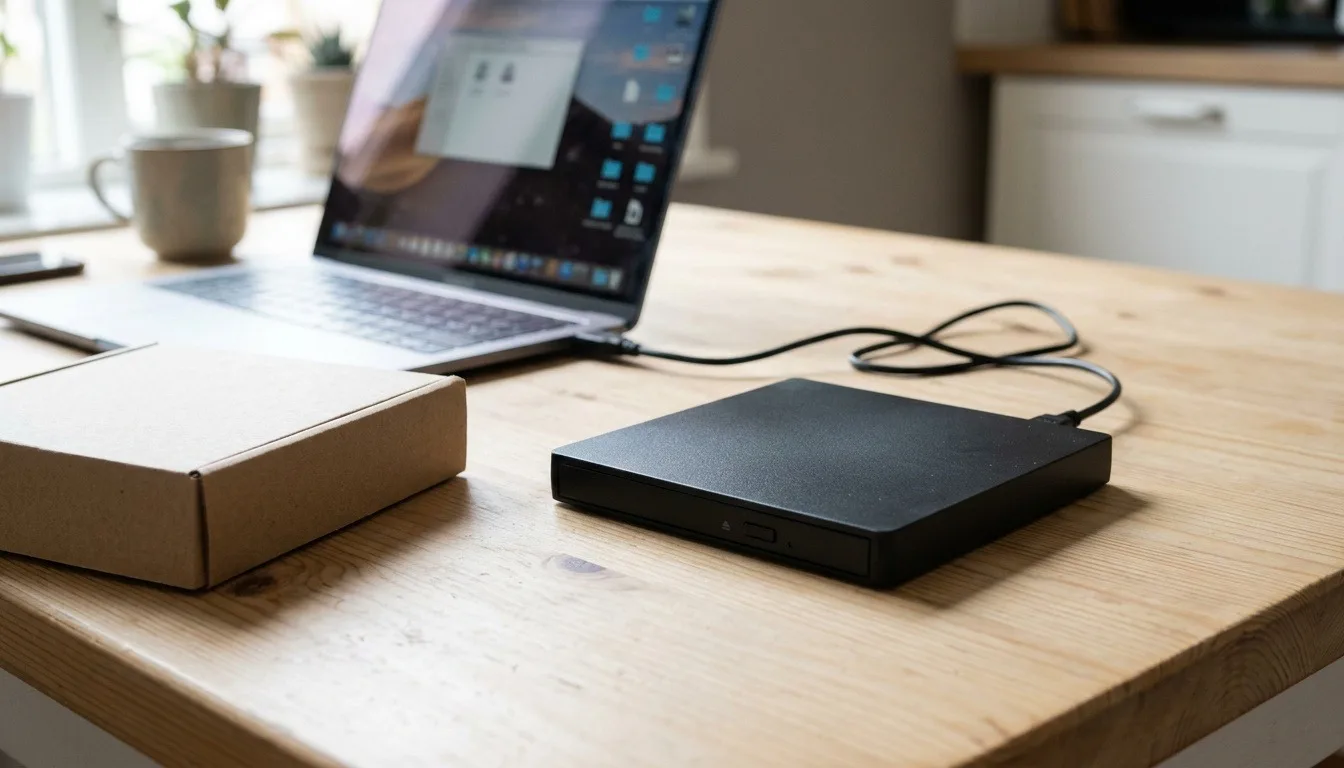
An external USB burner works with any laptop or desktop. It travels easily between machines. It costs a bit more per unit than an internal drive. It fits collectors who copy discs only now and then, or who have no free bay in a desktop tower.
An internal desktop burner mounts inside a tower, in a free 5.25-inch bay. It usually costs less than an external unit. It often runs a touch faster too. That speed matters more if you are working through a large stack of unprotected discs in one sitting.
Think about how often you will actually use the drive. A collector doing this once a year rarely needs the faster internal option.
When cloud backup makes more sense than a burner
Sometimes the real goal is protecting the video content, not owning a second disc. A digital or cloud backup service skips the burner and hardware entirely. It comes with an ongoing subscription cost. It does not give you a second physical disc. It fits people who want the content saved, not a shelf copy.
This route suits someone worried about losing footage to disc rot more than someone building a physical backup shelf.
Software features worth checking
Basic burning software that ships with most drives handles a simple, unprotected copy just fine. Archival software goes further. It checks for errors during the burn. It can also convert formats for easier long-term storage. That extra layer matters more if you are building a real backup library, not just making one copy.
Free software covers most one-off jobs. Paid archival tools earn their price only once you are managing dozens of discs on a regular basis.
The legal line to check first
Personal backup rights vary by country. They often depend on whether the disc carries copy protection. This page does not give legal advice. It also does not cover working around copy protection on a commercial disc. Check the current law where you live before copying anything beyond an unprotected, personally recorded disc.
What to do with an already-damaged disc
A disc with light scratches sometimes still copies cleanly on the first try. A disc with deep scratches or visible cracks may fail partway through a copy attempt. In that case, stop and avoid repeated attempts, since forcing a damaged disc through a drive risks damaging the drive itself, not just wasting a blank disc.
Blank media and disc quality
The blank disc itself affects how well a copy holds up over time. A cheap, low-rated blank can fail years sooner than a name-brand disc rated for archival use. If the whole point of the project is a long-term backup, spend a little more on the blank media rather than saving a few cents per disc.
Store finished copies the same way you would store any disc: upright, away from direct sunlight and away from heat sources. A copy stored badly can fail well before a well-stored original would.
Labeling and organizing your dvd copy library
A pile of unlabeled blank discs becomes useless fast. Label each disc as you burn it, either with a marker rated safe for disc surfaces or with a printed label made for that purpose. Include the title and the date you made the copy, since that date matters if you ever need to judge how old a disc is during a later check.
Keep a simple written or digital list alongside the physical discs. A spreadsheet with title, format and burn date takes a few minutes to set up and saves real time later when you are hunting for one specific backup among dozens.
Verdict on dvd copy
For most collectors doing a dvd copy of unprotected personal discs, an external USB burner and basic bundled software cover the job at low cost. Move to an internal burner only once you copy discs often enough that the lower cost and faster speed actually pay off. Check the law where you live before copying anything with copy protection.
FAQ
Is it legal to make a dvd copy of a disc I own?
This page does not give legal advice. Personal backup rights vary by country and by whether the disc carries copy protection. Check current law in your area before copying a protected disc.
Do I need special software to make a DVD copy?
Most burner drives include basic disc-burning software. Archival-focused software adds error checking and format conversion, which matters more for long-term backups.
Will a dvd copy play the same as the original?
An unprotected disc copies close to identically. A protected commercial disc may not copy cleanly at all, which is part of what copy protection is designed to do.